 button to bring up the list of countries,
We are excited to bring you this application and hope that you enjoy using it as much as we do. If you have any questions or problems that aren't addressed in the FAQ below, or would like to recommend a new feature update, please send us a message at support@ultibits.com.
Scanner feeds are audio streams of police, fire, emergency services and other radio transmissions that are delivered over the Internet. Volunteers who are local to a given region provide these feeds by connecting their computer to a scanner or other radio receiver and running some special software to upload the audio. More information about scanner feeds and free software can be found at RadioReference.com
Scan banks allow you to organize your favorite stations for easy retrieval. Banks can hold between three and six stations each, depending on which version of Action Scanner you are using. Only one bank can be scanned at a time.
Simply tap one of the bank buttons at the bottom of the main screen and Action Scanner will load that bank. If you don't currently have any stations in this bank, you will see an arrow reminding you to add some.
button to bring up the list of countries,
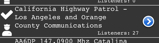
From any other screen in the application, tap the button in the upper left corner repeatedly until you return to the main screen. If you have any feeds loaded into the current bank, scanning will start automatically. The scan light to the left of each station will light momentarily as the station is scanned. If a signal is present, the light will remain on and scanning will pause for the duration of that signal. Scanning will resume a moment after the signal stops, or if the skip button is tapped.
To pause scanning and remain on a specific feed, tap the pause button  while the feed is active. Tap it again when you are finished and scanning will resume.
If you would like to temporarily skip a particular feed, tap the skip button  while the feed is active. This will cause Action Scanner to bypass the feed and continue scanning, until activity on the skipped feed has stopped and resumed again.
There are a number of settings that you can adjust for each feed. Action Scanner will remember these settings even if you remove the feed from your bank and load it back later.
To adjust feed settings, start by bringing up the Station Detail page. You can do this either by tapping the right side of a feed from the main screen, or by tapping the arrow in the blue circle for a feed in the feeds list.
Individual feed volume levels may be adjusted to compensate for differences between various feeds. Simply move the volume slider right or left to increase or decrease the volume level of a feed.
Action Scanner uses the squelch level as a threshold to decide when to stop on a feed during scanning. Lower squelch settings will cause a feed to lock on at a lower audio level, while higher settings will require more audio before locking on. Move the squelch slider left or right to adjust.
For most feeds, the default squelch setting will work well. If you notice that Action Scanner tends to "hang" on a feed that has static in the background, a higher setting will correct this.
The Station Type Selector buttons on the Station Details screen will allow you to select and override the station type, which will change the icon associated with a particular station. Simply tap the icon for the station type and your changes are saved automatically.
You can delete a station from a bank right from the main screen, simply swipe horizontally across the station to activate the delete button, and tap delete. Alternately, you can bring the station up in the feeds catalog and tap it to remove the checkmark.
To name your scan banks, tap the settings button  from the main screen. Next, tap one of the text boxes to bring up the keyboard, and change the bank name as desired. When you are done, tap the back button labeled Action Scanner
  to return to the main screen.
Note: This feature is not available in the Lite version of Action Scanner
From the main screen, swipe right to left at the top of the Ten Codes window to display the map. To return to the Ten Codes window, swipe left to right along the top edge of the map.
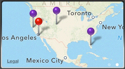
Drag across the map to move it, pinch to zoom. Tap the reposition map button  to reset the map to it's original location.
Tap the Map Type button  to toggle between the three map styles
Note: This feature is not available in the Lite version of Action Scanner
Action Scanner's background scanning function means you won't miss any of the action, even when you are using other applications on your iOS device.
To activate background scanning, tap the BG button  from the main screen so that it lights up in green. Tap again to deactivate. Alternately, background scanning can be selected from the switch on the settings screen.
With background scanning active, you may press the home button to close Action Scanner and you will continue to receive scanner feeds. To stop scanning simply re-open the application and turn off background scanning.
Note: this feature is not available in the Lite version of Action Scanner
If you would like to take the next step and provide a scanner feed of your own, it's easy to get started. You will need a radio receiver capable of hearing the station that you want to provide, a computer with a sound card, and a full-time internet connection. More information is available at RadioReference.com
Scanner feeds are supplied by volunteers who stream their local content to share with everyone on the Internet. If you are interested in providing a feed from your area, please visit www.radioreference.com.
All of the scanner feeds are streamed by volunteers who are local to each source. We do not provide the scanner feeds and unfortunately can't add any additional locations ourselves.
Stations are streamed by individual providers, and some are delivered at higher or lower audio levels. By tapping on the station title, you can go to a settings screen that will allow you to adjust the volume for individual station.
Some feed providers include more than one channel, either by overlapping them or by playing one each in the left and right channels.
Feeds are provided by volunteers, and not all feeds are available at all times. We intend to release updates regularly to keep the list of available stations current.
The squelch is used to help Action Scanner determine when action is present on a particular feed. If the scanner gets stuck on one feed even when there is no audio present, try a higher setting. If the audio is choppy or cuts off early, try a lower setting. Please note that the squelch level set by the feed provider can also cause audio to be choppy, and this is beyond our or your control.
Streaming audio requires a healthy amount of processing power, especially when the audio is received over a cellular connection. While the device may get mildly warm, we have tested on several devices for long periods of time and have never observed unacceptably high temperatures.